
Start with a budget you can keep
The classic mistake is budgeting aspirationally — cutting food spending 40% on day one. You'll break the budget in week two and abandon the app in week three. Instead: track normally for one month (Mona makes this nearly effortless), then set limits about 10% below what you actually spent. Tighten later, from a base you can hold.
Keep categories few and honest. Three to five budgeted categories — say Food & Drinks, Shopping, Transport — beat fifteen micro-categories you'll misfile things into.
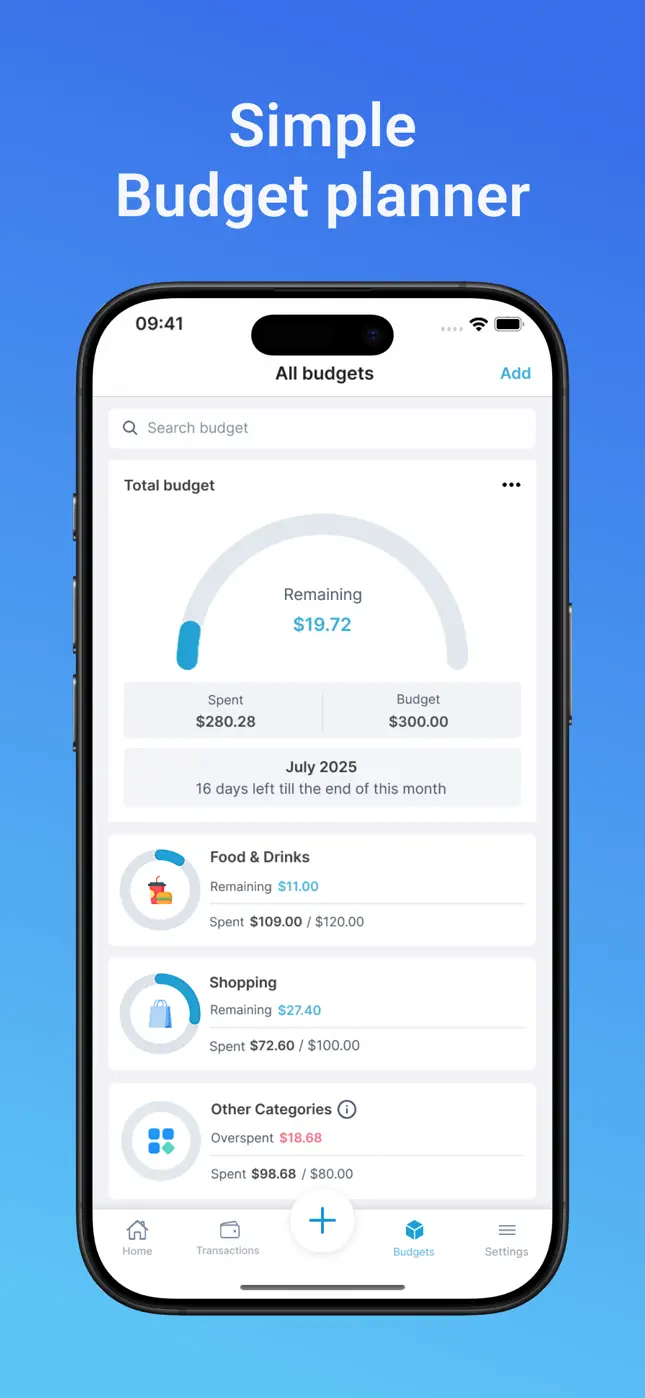
How Mona keeps the budget current without you
The budget planner is only as good as the data feeding it. Because expenses enter Mona by text message, voice or receipt photo, the tracking side runs itself:
- Total budget gauge — “Remaining $19.72” with days left in the month.
- Per-category budgets — spent vs. limit for each, with remaining amounts.
- Overspend flags — categories that blow their limit turn red with the overage amount.
- Spending trends — weekly and monthly bar charts per category, so you see pace, not just totals.

Try it free now
Money Tracker – Mona AI · Free on iPhone & Android · No bank login required
Set up your monthly budget in Mona, step by step
- Download Mona AI free and log a few days of spending by message or receipt scan.
- Open Budgets and tap Add. Set your total monthly amount first.
- Add 3–5 category budgets based on what you actually spend (Mona's history shows you).
- Glance at the gauge daily. One look answers the only question that matters: “am I on pace?”
- Adjust monthly. Budget details show each category's trend — tighten what's drifting, loosen what's unrealistic.
The weekly two-minute review
Once a week, open Budget details: check the spending trend chart, note any red categories, and skim the transaction list for surprises. Two minutes. This tiny ritual — made possible because the data is already complete — is the entire difference between people who budget and people who own a budgeting app.
Frequently asked questions
What's a good number of budget categories?+
Three to five. Enough to see where money goes, few enough that categorization stays automatic and honest.
Can I set budgets for different wallets?+
Yes — Mona supports unlimited wallets with budget management across personal, family and business use.
What happens when I overspend a category?+
The category is flagged red with the overspent amount, and your total remaining gauge reflects it — no surprises at month end.
Ready to put this into practice?
Download Money Tracker – Mona AI free and set it up before your next purchase.